For anyone who's wrestled with academic papers, the bibliography section often feels like a necessary evil. Endless formatting rules, precise sorting, and the sheer volume of references can quickly overwhelm. Fortunately, Integrating BibTeX with LaTeX offers a powerful, elegant solution that transforms this arduous task into a streamlined, almost effortless process.
This isn't just about saving time; it's about elevating the quality and consistency of your academic work. Forget the painstaking manual adjustments; BibTeX and its successor, BibLaTeX, put you in control, allowing LaTeX to handle the intricate details of citation and bibliography generation with professional precision.
At a Glance: Key Takeaways for Citation Management
- Ditch Manual Formatting: LaTeX's
thebibliographyenvironment is functional but incredibly tedious. BibTeX and BibLaTeX automate the entire process, separating content from style. .bibFiles Are Your Friends: All your reference data lives in a simple.bibtext file, making it reusable across projects and easy to manage.- BibTeX Workflow: You tell LaTeX which
.bibfile to use and which style to apply. A specific multi-step compilation (pdflatex,bibtex,pdflatextwice) processes everything. - BibLaTeX is the Modern Standard: For new projects,
biblatexis highly recommended. It offers more flexibility, better localization, and a simpler workflow than traditional BibTeX. - Overleaf Simplifies Everything: Online platforms like Overleaf automatically handle the complex compilation steps, letting you focus on writing.
- Consistency is Key: Once set up, your citations and reference list will adhere perfectly to your chosen style, from author-year to numbered, ensuring academic rigor.
The Citation Conundrum: Why Manual Bibliographies Are a Headache
Before diving into the magic of BibTeX, it's worth understanding the problem it solves. LaTeX offers a built-in way to create a bibliography using the thebibliography environment. It looks something like this:
latex
\begin{thebibliography}{99}
\bibitem{knuth84} Donald E. Knuth, The \TeX book. Addison-Wesley, 1984.
\bibitem{lamport94} Leslie Lamport, L\kern-.36em \raise.3ex\hbox{\sc a}\kern-.15em \lower.7ex\hbox{\sc t}\kern-.12em \textpeculiar\kern-.12em X: A Document Preparation System. Addison-Wesley, 1994.
\end{thebibliography}
You'd then cite these entries in your document using \cite{knuth84}. While functional, this manual approach presents significant drawbacks:
- Time-Consuming: Each entry must be meticulously formatted according to a specific style guide (APA, MLA, IEEE, Chicago, etc.). Even a minor change in style means rewriting the entire list.
- Error-Prone: Human error is inevitable with manual data entry. Typos, incorrect punctuation, or inconsistent ordering can easily creep in.
- Lack of Flexibility: Changing the order of entries, adding new ones, or removing old ones requires manual re-sorting and potentially re-numbering.
- Inconsistent Formatting: Maintaining a consistent look across dozens or hundreds of references is nearly impossible without automation.
- Compilation Hassle: Even with a manual list,
\citecommands require multiple runs ofpdflatexto resolve correctly, often displaying[?]until fully processed.
This manual system is a relic, a testament to LaTeX's early days. For any serious academic or professional writing, it's simply not viable. This is precisely where BibTeX steps in, transforming bibliography management from a chore into a seamless part of your writing workflow.
Enter BibTeX: Your LaTeX Bibliography Powerhouse
BibTeX, developed by Oren Patashnik and Leslie Lamport, revolutionized how bibliographies are handled in LaTeX. Its core genius lies in a simple yet powerful concept: separation of concerns. Your reference data (author, title, year, journal) is kept in one file, entirely separate from the reference style (how that data is formatted and presented). LaTeX then uses BibTeX to combine these two elements, generating a perfectly formatted bibliography tailored to your needs.
The Anatomy of a .bib File: Your Reference Data Bank
The heart of BibTeX is the .bib file—a plain text file containing all your bibliographic entries. Think of it as a meticulously organized database for your research sources. Each entry follows a specific structure:
bib
@article{einstein,
author = "Albert Einstein",
title = "Zur Elektrodynamik bewegter Körper",
journal = "Annalen der Physik",
volume = "322",
number = "10",
pages = "891--921",
year = "1905",
doi = "10.1002/andp.19053221004"
}
@book{knuth84,
author = "Donald E. Knuth",
title = "The {\TeX}book",
publisher = "Addison-Wesley",
year = "1984",
address = "Reading, MA, USA"
}
Let's break down the essential components:
- Entry Type: Every entry begins with an
@followed by the type of source you're citing (e.g.,@article,@book,@inproceedings). This tells BibTeX what kind of information to expect and how to format it. - Cite Key: Immediately after the entry type, within the first curly braces, is your unique cite key (e.g.,
einstein,knuth84). This is what you'll use in your LaTeX document with\cite{key}to refer to this specific source. Choose keys that are memorable and unique within your.bibfile (e.g.,AuthorYear,AuthorShortTitle). - Fields: Inside the main curly braces, you'll find a list of
field = "value",pairs. These fields contain the actual bibliographic information. Common fields include: author: The author(s) of the work.title: The full title of the work.journalorbooktitle: For articles, the journal name; for conference papers, the proceedings title.year: The publication year.publisher: The publisher of a book.volume,number,pages: For journal articles.editor: For edited books or collections.url: The URL of an online resource (often requires additional packages likeurlorhyperrefin LaTeX).note: For any additional information that doesn't fit other fields.
Tips for Author Names and Special Characters
- Multiple Authors: Separate authors with the keyword
and:author = "Albert Einstein and Mileva Marić". - Author Order: BibTeX typically expects "Firstname Lastname". If you need to specify "Lastname, Firstname", you can:
author = "Knuth, Donald E.". For multi-word last names or organizations, use braces:author = "{Van der Meer}, Anne". - Special Characters: LaTeX commands or special characters (like accents) need to be enclosed in curly braces to prevent BibTeX from interpreting them incorrectly or changing their case (e.g.,
title = "{The {\TeX}book}"to preserve "TeX").
Ignoring Entries or Fields
- Ignore a Field: To temporarily ignore a field without deleting its content, simply rename it (e.g., change
yeartoIGNOREyear). - Ignore an Entry: Remove the
@sign at the beginning of the entry. BibTeX will then treat it as a block of comments. - Comments: Unlike LaTeX,
%does not create comments in a.bibfile. Any lines not part of an entry will be ignored, but it's best to use the renaming/removing@trick for clarity.
Crafting Your .bib Files: Tools and Techniques
While you can write .bib files manually in any text editor, specialized tools make the process much smoother:
- Reference Managers: Software like Zotero, Mendeley, and EndNote allow you to collect, organize, and annotate references, then export them directly into
.bibformat. This is highly recommended for researchers. - Dedicated BibTeX Editors: Tools like JabRef (cross-platform) or BibDesk (macOS) provide a graphical interface for creating and managing
.bibfiles, offering features like auto-completion and validation. - Online Generators: For quick, single entries, many academic databases offer "export to BibTeX" options. You can also leverage handy resources like our BibTeX generator tool to quickly create correctly formatted entries from scratch.
Integrating BibTeX with Your LaTeX Document (.tex file)
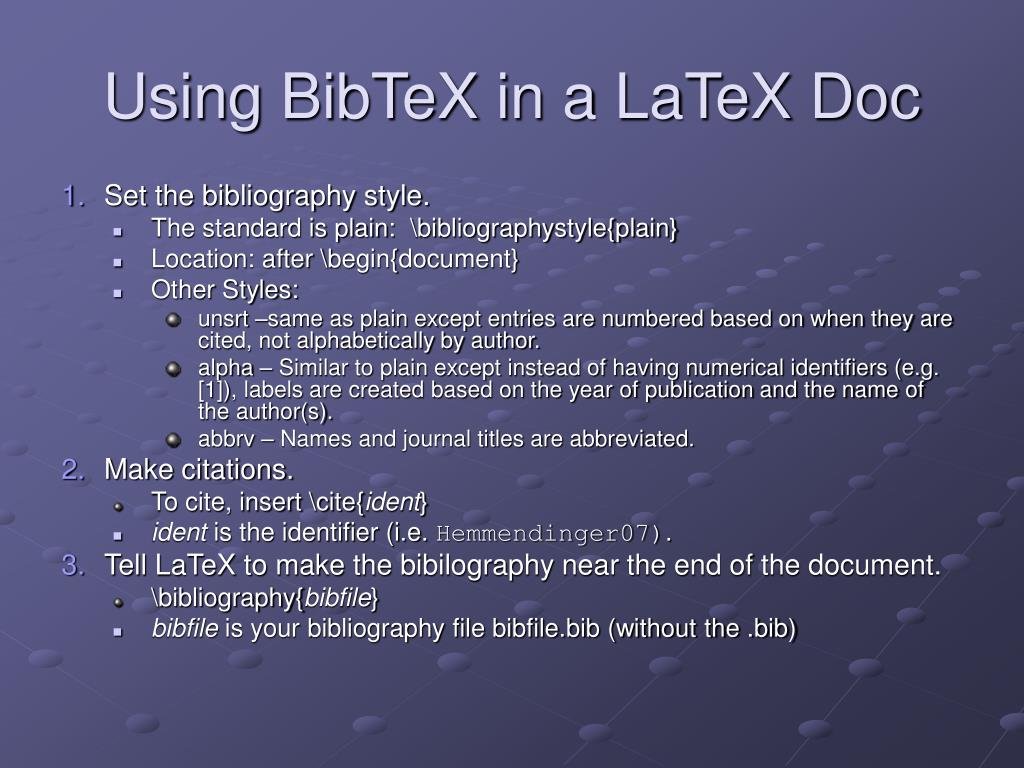
Once your .bib file is ready (let's call it myreferences.bib), you need to tell your main LaTeX document (main.tex) how to use it. This involves three key commands:
\cite{cite_key}: This is how you create an in-text citation. Place it wherever you want to reference a source. For example:The theory was first proposed by Einstein \cite{einstein}.\bibliographystyle{style_name}: In your LaTeX document's preamble (or just before\bibliography), this command specifies the bibliography style. This is crucial as it dictates how your references will be formatted (e.g., APA, IEEE, numbered, author-year). Common built-in styles includeplain,abbrv,alpha, andunsrt. Many journals and publishers provide their own custom.bst(BibTeX style) files.
latex
\bibliographystyle{plain} % or apalike, IEEEtran, etc.\bibliography{bib_file_name}: This command tells LaTeX where to find your.bibfile and where to place the generated bibliography in your document. Crucially, you do not include the.bibfile extension.
latex
\bibliography{myreferences} % Points to myreferences.bib
Typically,\bibliographyis placed at the very end of your document, just before\end{document}.
Yourmain.texmight look something like this:
latex
\documentclass{article}
% Preamble
\usepackage[utf8]{inputenc}
\usepackage{graphicx}
% ... other packages ...
\begin{document}
\section{Introduction}
This is some text with a citation to a book \cite{knuth84}.
Another important finding was published by Einstein \cite{einstein}.
\section{Discussion}
Further details can be found in the original paper by Knuth \cite{knuth84}.
% Place the bibliography here
\bibliographystyle{plain} % Choose your style
\bibliography{myreferences} % Points to myreferences.bib
\end{document}
The BibTeX Compilation Dance: Making It All Work
This is where BibTeX can initially seem a bit more complex. Unlike a single pdflatex run, getting your references to appear correctly requires a specific sequence of commands. This is because LaTeX and BibTeX communicate through auxiliary files.
Here's the traditional manual compilation sequence in your terminal:
pdflatex main.tex(First run): LaTeX processes your document. It identifies all\citecommands and writes the cite keys into an auxiliary file (main.aux). At this point, your citations will likely appear as[?]in the output PDF because the reference list hasn't been generated yet.bibtex main.aux: This is the core BibTeX step. Thebibtexprogram readsmain.auxto find out which references were cited. It then looks up those references in yourmyreferences.bibfile and formats them according to theplain.bst(or whatever style you specified) file. The result is a formatted bibliography in a.bblfile (e.g.,main.bbl).pdflatex main.tex(Second run): LaTeX processes your document again. This time, it finds the\bibliographycommand, reads themain.bblfile (which now contains the formatted bibliography), and includes it in your PDF. However, the\citecommands might still show[?]because the document hasn't yet processed the numerical labels assigned by the bibliography.pdflatex main.tex(Third run): One final LaTeX run. This time, LaTeX reads the updated information (including the generated labels) frommain.auxandmain.bbl, finally resolving all\citecommands to their correct numbers or author-year forms.
It's a four-step tango! While this might seem intimidating, most modern LaTeX editors and build systems automate this process entirely. Overleaf, for instance, uses thelatexmktool which automatically detects whenbibtex(orbiberfor BibLaTeX) needs to be run, simplifying your workflow to a single "Recompile" click.
Beyond BibTeX: Embracing BibLaTeX for Modern Needs
While BibTeX was revolutionary, it has its limitations, particularly with modern academic demands like extensive language support, more flexible citation styles (e.g., footnotes), and tighter integration with LaTeX itself. This is where BibLaTeX comes in.
Developed by Philip Lehmann and Philipp Gesang, BibLaTeX is a more recent and powerful bibliography management system designed to overcome many of BibTeX's shortcomings. It's built on top of the LaTeX biber backend (which is often preferred over the older bibtex backend for its Unicode support and flexibility), offering a truly modern solution.
Why BibLaTeX is the New Standard
- Flexibility and Customization: BibLaTeX offers unparalleled control over bibliography formatting, allowing for highly complex and customized styles without needing to write
.bstfiles. - Multilingual Support: Excellent support for various languages and character sets, crucial for international research.
- Active Development: It's actively maintained and developed, with new features and bug fixes regularly released. Traditional BibTeX is largely static.
- Context-Sensitive Citations: Easily handle complex citation needs like full citations on first mention and short citations thereafter, or footnote citations.
- Data Handling: Better handling of advanced
.bibfile features and data.
Core Recommendation: For any new LaTeX project, especially if you anticipate complex citation requirements or need multilingual support,biblatexis the recommended choice over traditionalbibtex.
The BibLaTeX Workflow: A Simpler Setup
The process of using BibLaTeX is slightly different but often feels more integrated and intuitive:
- Create a
.bibfile: This step is identical to traditional BibTeX. Your reference entries inmyreferences.bibremain the same. - Integrate into LaTeX document (
.texfile):
- Include the package in the preamble: You load
biblatexin your preamble, specifying both thebackend(usuallybiber, but can bebibtexfor compatibility) and thestyle.
latex
\usepackage[backend=biber, style=authoryear]{biblatex}
% Or for footnotes:
% \usepackage[backend=biber, style=verbose-trad2]{biblatex}
Popularbiblatexstyles includeauthoryear(for APA/Chicago-like citations),numeric(for numbered citations),verbose(for full citations on first mention), and many others. - Specify your
.bibfile: Use\addbibresource{bib_file_name.bib}. Note that here you do include the.bibextension, and this command goes in the preamble, not at the end of the document.
latex
\addbibresource{myreferences.bib} - Cite your sources: BibLaTeX offers a richer set of citation commands:
\cite{key}: Basic citation.\autocite{key}: A versatile command that often generates footnotes by default if the style dictates it, or in-text citations otherwise.\parencite{key}: For parenthetical citations.\textcite{key}: For narrative citations (e.g., "Smith (2020) argued...").\autocite[page_number]{cite_key}: Easily add page numbers.- Print the bibliography: Use
\printbibliographywhere you want the reference list to appear. This command replaces\bibliography{}and handles the heading generation automatically.
Here's an examplemain.texusing BibLaTeX:
latex
\documentclass{article}
% Preamble
\usepackage[utf8]{inputenc}
\usepackage[backend=biber, style=authoryear]{biblatex} % Use biber backend and authoryear style
\addbibresource{myreferences.bib} % Specify your .bib file in the preamble
\begin{document}
\section{Introduction}
A classic work in computer science \autocite{knuth84} laid the groundwork.
Later, this concept was further explored \parencite{einstein}.
\section{Discussion}
Einstein \textcite{einstein} famously described this phenomenon.
% Place the bibliography here
\printbibliography
\end{document}
BibLaTeX Compilation Process (often automated)
With BibLaTeX, the compilation sequence is slightly different, using biber instead of bibtex:
pdflatex main.texbiber main.aux(orbibtex main.auxifbackend=bibtexwas chosen)pdflatex main.texpdflatex main.tex
Again, tools like Overleaf seamlessly handle thispdflatex -> biber -> pdflatex -> pdflatexsequence automatically, so you rarely need to execute these commands manually. This automated environment significantly simplifies Integrating BibTeX with LaTeX (or more accurately, BibLaTeX with LaTeX).
Mastering Your .bib Files: Tips for Success
Regardless of whether you choose BibTeX or BibLaTeX, the quality and consistency of your .bib file are paramount.
Cited Entries Only
A powerful feature of both BibTeX and BibLaTeX is that only the references you actually cite in your LaTeX document will appear in the final bibliography. This means you can maintain one large, comprehensive .bib file for all your research and reuse it across multiple projects. Each project will then generate a bibliography containing only the sources relevant to that specific document.
If you do want an entry to appear in the bibliography without an explicit \cite command, you can use \nocite{cite_key} for individual entries or \nocite{*} to include all entries from your .bib file. This is useful for creating a full list of publications or recommended readings.
Case Sensitivity Matters
Pay close attention to case sensitivity:
- Filenames:
myreferences.bibis different fromMyReferences.bib. - Cite Keys:
Einstein1905is different fromeinstein1905. Ensure your\cite{}commands match the keys in your.bibfile exactly.
Sorting and Formatting
The order of entries within your .bib file has no bearing on the order of the references in your final bibliography. The sorting and formatting are entirely determined by the \bibliographystyle{} command (for BibTeX) or the style option in \usepackage{biblatex} (for BibLaTeX). These styles can sort alphabetically by author, chronologically, by appearance in the text, or by other criteria.
Common BibTeX Entry Types and Fields
Understanding the most common entry types and their associated fields is crucial for effectively populating your .bib file:
@article: For journal or magazine articles.- Required:
author,title,journal(orjournaltitlefor BibLaTeX),year. - Optional:
volume,number(orissue),pages,month,doi,url,issn. @inproceedings(or@conference): For papers published in conference proceedings.- Required:
author,title,booktitle,year. - Optional:
editor,pages,month,organization,publisher,address. @book: For a complete book.- Required:
authororeditor,title,publisher,year. - Optional:
volumeornumber,series,address,edition,month,isbn. @inbook: A chapter or section in a book.- Required:
authororeditor,title,chapterorpages,publisher,year. - Optional:
volume,series,type,address,edition,month. @incollection: An article or chapter within a collected work (e.g., an edited volume). Similar to@inbook, but more commonly used for distinct essays in a collection.- Required:
author,title,booktitle,publisher,year. - Optional:
editor,volume,series,pages,type,address,edition,month. @phdthesis/@masterthesis: For a doctoral dissertation or master's thesis.- Required:
author,title,school,year. - Optional:
type(e.g., "Ph.D. dissertation"),address,month,url. @misc: A catch-all for anything that doesn't fit other types, often used for web pages, reports, or unpublished works.- Required: None, but
author,title,howpublished,year,note,urlare very common. - Example for a web page:
bib
@misc{latexproject,
author = "{The LaTeX Project}",
title = "The \LaTeX Project Website",
howpublished = "\url{https://www.latex-project.org/}",
year = "2023",
note = "Accessed on 2023-10-27"
}
Note: Theurlfield may require\usepackage{url}or\usepackage{hyperref}in your LaTeX preamble. Not all BibTeX styles will render theurlfield, but BibLaTeX styles generally do.
Common Pitfalls and How to Avoid Them
Even with automation, integrating BibTeX or BibLaTeX can present a few challenges. Knowing these common issues can save you hours of debugging:
- Citations Showing
[?]: This is the most frequent problem. It almost always means you haven't completed the full compilation sequence (e.g., you forgot abibtexorbiberrun, or a subsequentpdflatexrun). Check your log file (.log) for errors. If using Overleaf, ensure the compiler is set correctly (e.g., "PdfLaTeX" for BibTeX, or "Biber (BibLaTeX)" if using BibLaTeX and Biber). - Missing Bibliography:
- BibTeX: Did you include
\bibliographystyle{}and\bibliography{}? Is the.bibfilename correct (without extension)? - BibLaTeX: Did you use
\usepackage[backend=biber,...]{biblatex}and\addbibresource{filename.bib}(with extension) in the preamble? Did you include\printbibliographyin your document body?
- Bibliography Not Formatted Correctly:
- BibTeX: Is the correct
.bstfile in your LaTeX project directory or in a location LaTeX can find? Is the\bibliographystyle{}command correctly spelled? - BibLaTeX: Is the
styleoption in\usepackage{biblatex}correctly spelled?
- Special Characters or Formatting Lost: Remember to wrap LaTeX commands or special characters within curly braces in your
.bibfile values (e.g.,title = "{My {PhD} Thesis}"). - Wrong BibTeX Backend for BibLaTeX: If using BibLaTeX, ensure your editor/system is running
biberand notbibtex. Thebackend=biberoption in\usepackage{biblatex}is crucial. - Unused Entries in
.bibfile: By default, only cited entries appear. If you expect an entry to show up but it's not cited, use\nocite{key}. auxfile errors: Sometimes the.auxfile can get corrupted. A clean rebuild (deleting all auxiliary files like.aux,.bbl,.blg,.logand recompiling from scratch) can often fix this. Overleaf's "Recompile from scratch" option does this automatically.
Optimizing Your Workflow: Tools and Best Practices
To truly master Integrating BibTeX with LaTeX, consider these tips for a streamlined workflow:
- Choose a Reference Manager: For long-term research, a dedicated reference manager (Zotero, Mendeley, EndNote) is invaluable. They allow you to collect PDFs, take notes, and, most importantly, export your library to
.bibformat with a click. This ensures consistent and accurate data entry. - Use Overleaf: If you're new to LaTeX or want to avoid command-line compilation, Overleaf is an excellent choice. Its integrated
latexmkbuilder handles all the complexpdflatex/bibtex/biberruns behind the scenes. - Keep Your
.bibFile Clean: Regularly review your.bibfile. Remove duplicate entries, ensure field accuracy, and standardize your cite key naming conventions (e.g.,AuthorYearorAuthorShortTitle). - Understand Your Style: Familiarize yourself with the requirements of your target journal or institution. They often specify a particular bibliography style (
.bstfor BibTeX or abiblatexstyle/package). Sometimes you might need to find or adapt a custom style file. - Back Up Your
.bibFile: Treat your.bibfile as a critical asset. Keep it backed up, ideally in a cloud storage solution or version control system. - Embrace Version Control: For academic projects, especially collaborative ones, using Git (and platforms like GitHub or GitLab) for your LaTeX documents and
.bibfiles is a game-changer. It tracks changes, facilitates collaboration, and provides a safety net.
Frequently Asked Questions (FAQs)
What's the main difference between BibTeX and BibLaTeX?
BibTeX is the older, original system, using .bst style files and the bibtex program. BibLaTeX is a more modern, flexible, and actively developed package that works with the biber program (or bibtex as a backend option). BibLaTeX offers better customization, multilingual support, and more sophisticated citation commands, making it generally recommended for new projects.
Why are my citations showing up as [?]?
This almost always means the bibliography hasn't been fully processed. You need to run LaTeX, then BibTeX/Biber, and then LaTeX at least twice more. Ensure you've completed the full compilation sequence. If using an online editor like Overleaf, ensure the correct compiler (e.g., "Biber" for BibLaTeX) is selected and try "Recompile from scratch."
Can I use multiple .bib files in one document?
Yes! Both BibTeX and BibLaTeX support this.
- For BibTeX, simply list multiple files in
\bibliography{file1,file2,file3}. - For BibLaTeX, use multiple
\addbibresource{file1.bib}commands in your preamble.
How do I add URLs to my bibliography?
For BibTeX, the url field is available, but you might need \usepackage{url} or \usepackage{hyperref} in your LaTeX document to make them clickable and formatted correctly. Not all legacy .bst styles support rendering the url field.
For BibLaTeX, the url field is well-supported, and hyperref is often used in conjunction to make links clickable.
What if my journal/university requires a specific bibliography style not found in default LaTeX?
Many journals provide their own .bst (BibTeX) or .bbx/.cbx (BibLaTeX) style files. You'll need to download these files and place them in the same directory as your main .tex file, then specify them in \bibliographystyle{stylename} or \usepackage[style=stylename]{biblatex}. If no specific style is provided, look for one that closely matches their guidelines (e.g., apalike for APA-like, IEEEtran for IEEE).
How do I cite a website or a source with no author?
Use the @misc entry type. For a website, you'd typically include title, howpublished (with the URL), year, and a note field to specify the access date. If no author is available, simply omit the author field. Some styles will then list the entry by title or organization if provided.
Moving Forward with Confidence: Your Next Steps
You've now got the foundational knowledge to not just use BibTeX and BibLaTeX, but to truly understand how they empower your academic writing. No more manually typing out reference lists, no more inconsistencies, and no more last-minute panic over formatting.
Here's how to put this knowledge into action:
- Start with BibLaTeX: If you're beginning a new project, embrace BibLaTeX with the
biberbackend. It's the future-proof choice. - Choose a Reference Manager: Integrate Zotero or Mendeley into your research workflow to effortlessly collect and export
.bibentries. - Experiment with Styles: Play around with different
\bibliographystyle{}orbiblatexstyleoptions to see how they impact your bibliography's appearance. - Practice the Workflow: Even if you use Overleaf, understanding the
pdflatex -> bibtex/biber -> pdflatex -> pdflatexsequence will help you troubleshoot when things go awry. - Refer to Documentation: The
biblatexdocumentation is comprehensive and invaluable for advanced customization.
Integrating BibTeX with LaTeX—and particularly BibLaTeX—is one of the most significant efficiencies you can bring to your academic and professional writing. Master it, and you'll find yourself spending less time on tedious formatting and more time on the ideas that truly matter.